Scheduling and the calendar
The calendar shows everything your team has planned and posted, in the team’s timezone. Drag a post to move it.
The calendar
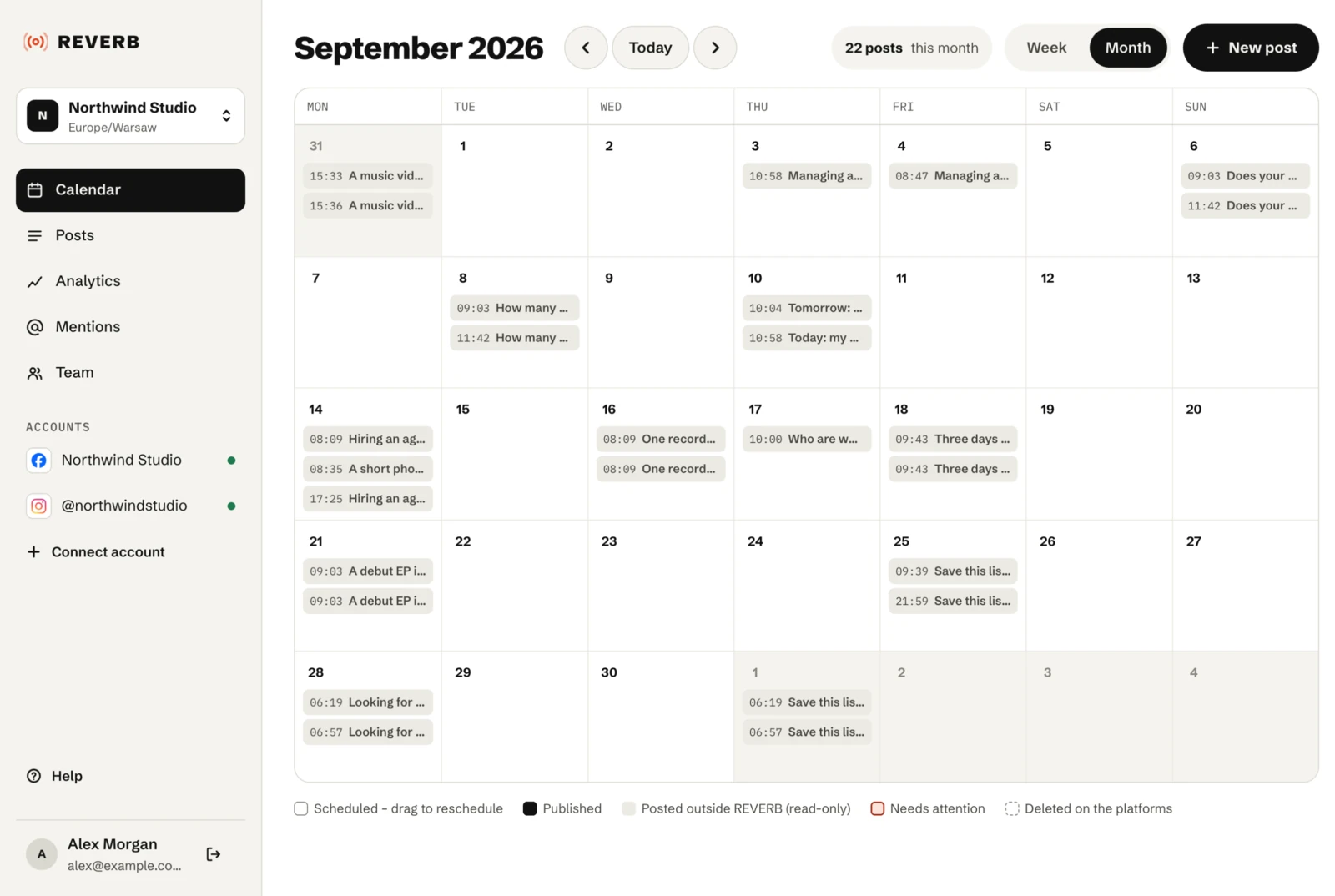
- The calendar has a week view and a month view. Every time is in the team’s timezone, whatever timezone you’re in.
- Each post shows its time, a small thumbnail and the platforms it goes to.
- Drag a scheduled post to another day or time to move it. In the week view it snaps to 15 minutes.
- Only posts still scheduled on every platform can be moved. Once a post’s time has passed it shows as Publishing and stays where it is.
When a scheduled post goes out
A scheduled post goes out at its time, usually within a minute or two. Videos can take several more minutes while the platform processes them. To take a post off the calendar, open it and click Unschedule; it goes back to the drafts.
Posts made directly in the apps
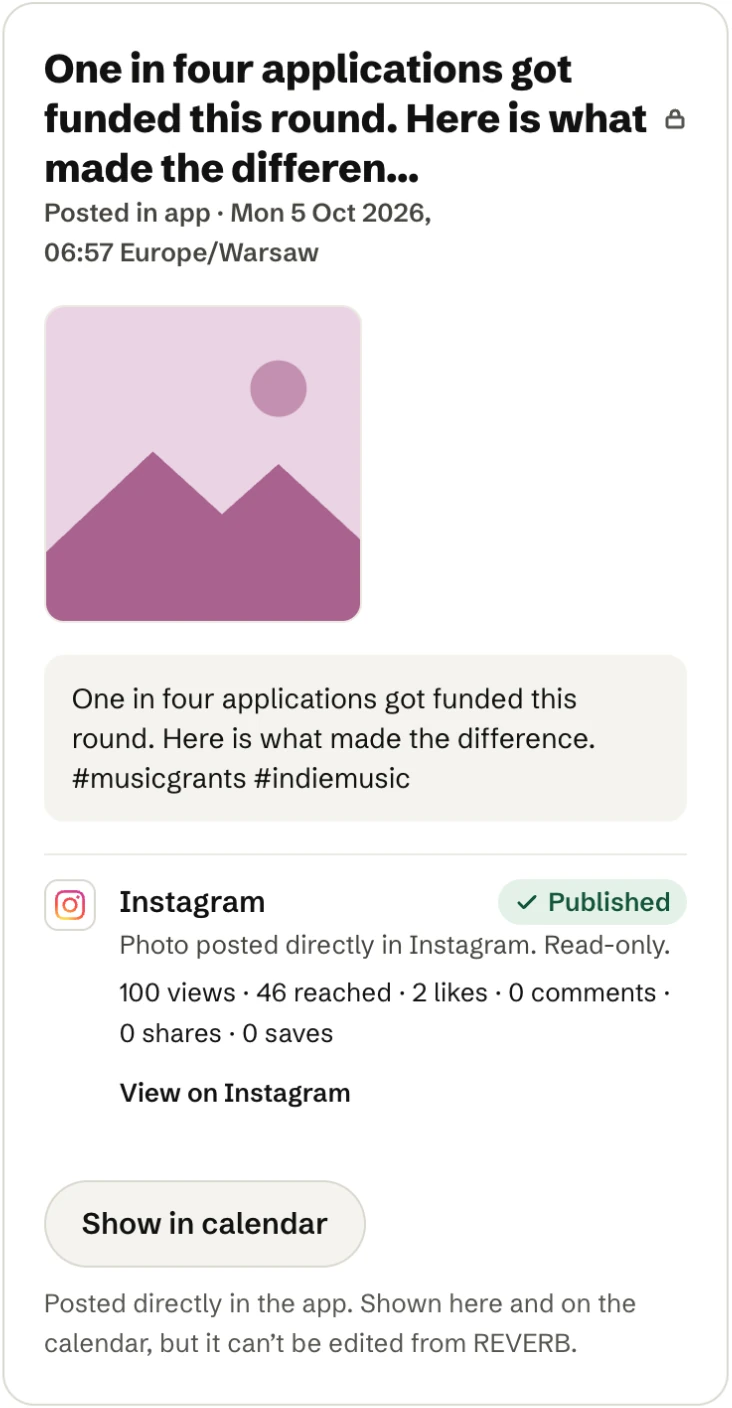
- Posts you make directly in the platforms’ apps show up in REVERB within about 3 hours, marked Posted in app. For TikTok, only public videos.
- They’re read-only: they can’t be edited or moved. They count towards the weekly target.
- Posts deleted on the platform show as Deleted within about 3 hours.
Weekly target
If your team set a weekly target, the week view shows how many posts are planned against it, for example “2 of 3 posts”. See Posting pace.
Changing the team’s timezone keeps scheduled posts at the same moment, so they may show at a different hour.